










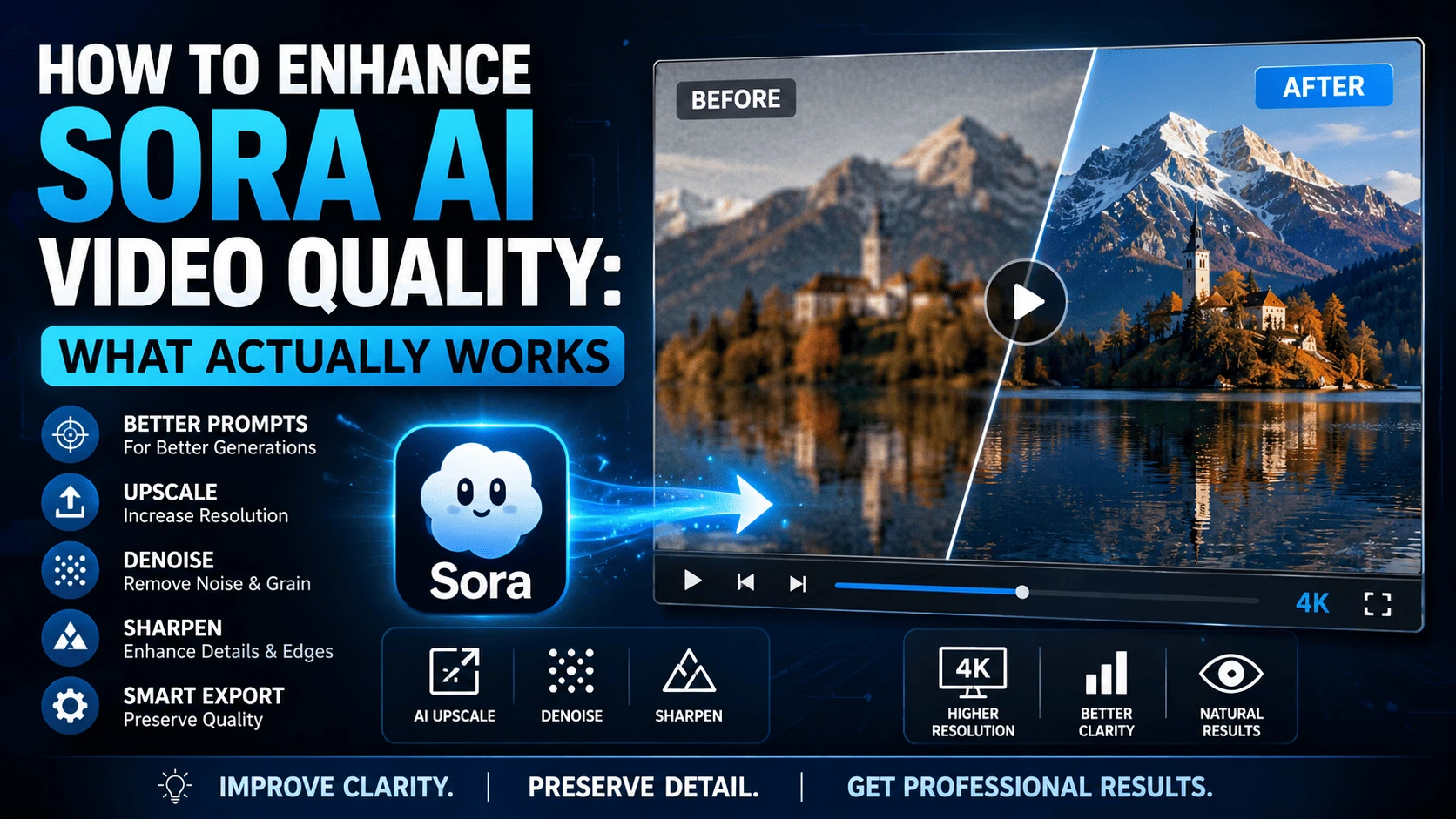
How to Enhance Sora AI Video Quality depends on where the quality problem started. Sora videos can come out soft, blurry, noisy, low-detail, or inconsistent, and each issue may require a different approach.
There are really two different situations. You may be trying to get a better result from a new Sora generation, or you may already have a video and want to make that existing file look cleaner. Those are not the same job.
A more detailed prompt can influence a new generation, but it does not repair a video that has already been created. Upscaling can increase resolution, but it cannot reliably bring back visual information that was never there.
Start by figuring out what went wrong, then choose the right way to improve the video. Knowing How to Enhance Sora AI Video Quality starts with identifying whether the problem comes from generation, processing, or export.
First Identify Where the Quality Problem Comes From
Start with the original file, not the version that has already been resized, compressed, or exported several times. If the source itself is soft or low-resolution, later processing has less real detail to work with.
Look at what the problem actually looks like. Soft edges and general blur are different from visible compression blocks. Grain or noise is different from missing detail, and a strange motion artifact is different from a low-resolution image. Treating all of them as one “quality” problem usually leads to the wrong fix.
The timing of the problem matters, too. If the video looked poor immediately after generation, the issue may be tied to the generated footage itself. If it looked fine at first and became worse after editing or exporting, the source may not be the problem at all.
Some scenes also expose weaknesses more easily than others. Fast movement, complicated backgrounds, faces, fine textures, and small details can make softness or visual artifacts much easier to notice.
Before changing anything, keep the original Sora (text-to-video model) video intact and check it at its actual size. That gives you a useful baseline for judging whether any later processing genuinely helped and makes it easier to understand How to Enhance Sora AI Video Quality without damaging the original file.
How to Enhance Sora AI Video Quality Before Generating a New Video
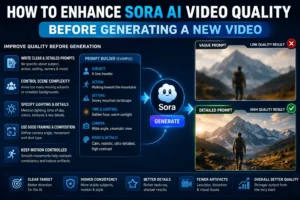
If the problem starts with the generation itself, it is usually better to improve the input before spending time trying to repair the result. A prompt does not need to be packed with every visual detail. Clear instructions about the subject, movement, framing, and lighting give the model a more defined target.
Scene complexity matters too. A crowded scene with several moving subjects, complicated backgrounds, and fast camera movement gives the generation more things to get right at once. Keeping movement controlled can help when consistency matters more than spectacle.
Lighting and subject detail are worth specifying when they are important to the shot. This makes the visual target easier to interpret and can be an important part of How to Enhance Sora AI Video Quality when creating a new video.
This only applies to a new generation. Changing the prompt cannot go back and repair an Sora video that has already been rendered.
Enhance an Existing Sora Video After Generation
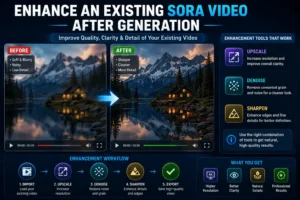
For an existing video, the job changes from controlling the generation to working with the footage you already have. Upscaling, denoising, and sharpening each deal with a different part of the problem, so they should not be treated as interchangeable quality buttons. This is another important part of understanding How to Enhance Sora AI Video Quality after generation.
Upscaling increases the output resolution, which can make a video more suitable for a larger display or final delivery size. It does not mean the added pixels contain genuinely recovered detail. A blurry source can still look blurry after being enlarged.
Denoising is useful when unwanted grain or noise is distracting from the image. It can also affect compression-related texture, but pushing it too far can wipe out fine detail and make surfaces look unnaturally smooth.
Sharpening works differently. It can make soft edges appear more defined, which may improve perceived clarity. Too much, though, can create halos, harsh edges, or a processed look that is more noticeable than the original softness.
Compare the original beside the processed version using the same frames at the same viewing size. If the enhanced version only looks “sharper” while faces, textures, or moving details have become less natural, the processing has not really solved the problem.
Use Better Export Settings to Preserve Quality

Exporting can still reduce the quality you preserved during processing. Keep the highest practical source resolution available before making another copy, especially if the file may go through further editing. Good export practices are an important part of How to Enhance Sora AI Video Quality because poor settings can undo improvements made during processing.
Repeated compression is an easy way to lose detail without noticing it immediately. Exporting, re-importing, and exporting again can gradually introduce softer edges and more visible compression artifacts. Keeping a clean working copy avoids that extra damage.
Bitrate matters because it affects how much visual information the exported file can retain. A low bitrate can make fine detail look smeared or introduce blocky artifacts, particularly in scenes with movement or texture.
MP4 is usually the simpler choice for general publishing, while MOV is more useful when the video will continue through an editing workflow. Neither format automatically makes the underlying video more detailed.
Match the final export to the way it will be shown. A vertical video that gets unnecessarily cropped into a landscape frame, or a landscape video that is repeatedly resized for a vertical platform, can lose useful framing and quality along the way.
What Enhancement Can and Cannot Fix
Enhancement has a ceiling. If the source is genuinely low-resolution, upscaling can make it more usable at a larger size, but it does not turn the footage into something that was originally captured with much finer detail.
Severe blur is harder to disguise. Major AI-generated artifacts, broken motion, and distorted details can also remain obvious after processing. Increasing the resolution number does not change that. Understanding these limitations is essential when deciding How to Enhance Sora AI Video Quality realistically.
Regeneration can make more sense when a serious problem remains visible after processing. If the original generation has a serious visual problem that enhancement keeps exposing, repeatedly processing the same file is unlikely to produce a genuinely better result.
Common Mistakes That Can Make the Video Look Worse
One common mistake is treating sharpening as a general fix. It can make an already-soft image look more defined, but pushing it too far can produce halos, harsh edges, and artificial texture.
Denoising has a similar trap. Too much can smooth away fine details that were still usable in the original footage, leaving faces, surfaces, or textures looking unnaturally flat.
Repeatedly upscaling and exporting a weak source can compound the problem. Each new version gives you another opportunity to lose detail or add compression artifacts.
Checking the final video on only one screen can also hide problems. Something that looks acceptable at one viewing size may show obvious halos, flickering, or unnatural texture when viewed larger.
How to Tell Whether the Enhancement Actually Worked
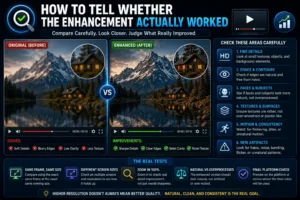
Compare the original and enhanced versions using the same frame and the same viewing size. Otherwise, a larger or sharper-looking version can seem better simply because it is being viewed differently. This comparison is one of the simplest ways to judge How to Enhance Sora AI Video Quality without relying only on the resolution number.
Look closely at fine details, edges, faces, textures, shadows, and moving objects. These areas can reveal whether the processing actually improved the image or just made certain features more pronounced.
Watch for new problems too. Halos around edges, flickering, unnatural textures, and an overprocessed look can be signs that the enhancement went too far.
The resolution number is not the main test. If the higher-resolution file looks more artificial while the original retains more natural detail, the larger file is not necessarily the better result.
Check the final file on the screen or platform where it will actually be used. A result that looks fine in an editing window can behave differently once it is viewed at its intended size.
What to Consider When Enhancing Sora Videos
The source of the quality problem determines which method makes sense. A generation problem, limited source resolution, compression damage, and issues introduced during post-processing are not interchangeable.
Prompt changes belong mainly to the new video generation. For an existing video, the relevant work is in enhancement and processing.
A higher resolution, a sharper appearance, and genuinely recovered detail are also different things. One can improve without the others. Keeping these differences in mind will help you make better decisions about How to Enhance Sora AI Video Quality for each type of footage.
Make a controlled change, compare it with the original, and judge what actually improved rather than assuming every processing step helped. This practical approach is often the best way to How to Enhance Sora AI Video Quality while preserving natural-looking detail.




2 thoughts on “How to Enhance Sora AI Video Quality: What Actually Works”