










A lot of people expect a Sprite Animation Maker AI tool to take a prompt and spit out a game-ready sprite sheet. That’s usually not where things fall apart.
The harder part is keeping every frame usable. A character might look great in one pose, then suddenly change height, facial features, or proportions in the next. Sometimes the background isn’t truly transparent. Sometimes the frames don’t line up cleanly. Those are small problems when you’re looking at individual images. They become obvious the moment you try to animate them.
That’s the difference this article focuses on. Not whether AI can make attractive pixel art or character art, but whether a Sprite Animation Maker AI can produce sprites that survive an actual game workflow.
We’ll look at what makes a sprite animation-ready, where different AI tools fit, and where manual cleanup still tends to be part of the process.
What Makes a Sprite Truly Animation-Ready?
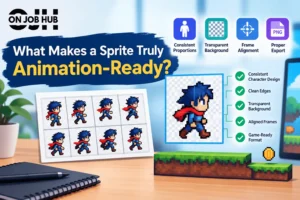
A sprite becomes animation-ready when every frame behaves like it belongs to the same character. Visual quality matters, but consistency matters more. A polished image that shifts proportions every frame is harder to use than a simpler one that stays stable.
Character proportions are usually the first thing to check. If the head grows slightly, the arms change length, or the feet move relative to the body without a reason, the animation starts to feel unstable. AI image generation is still prone to this because it often treats each frame as a separate image instead of part of one sequence.
Clean edges and a proper transparent background matter for a different reason. They save time later. You don’t want to spend hours trimming stray pixels or removing leftover backgrounds before you can even test an animation.
Frame alignment is just as important. Even a good-looking walk cycle can appear to jitter if each frame is positioned a few pixels differently. The artwork isn’t necessarily wrong. The placement is.
Export also matters. A sprite sheet that imports cleanly into a game engine is much easier to work with than a folder full of unrelated images that still need arranging. Good organization doesn’t make the animation better, but it removes unnecessary work.
There is also a point where AI stops helping much. If frame consistency drifts, edges need cleanup, or small details keep changing between poses, manual editing is usually the faster option than trying to regenerate the same frame over and over.
Understanding Different Types of Sprite AI Tools
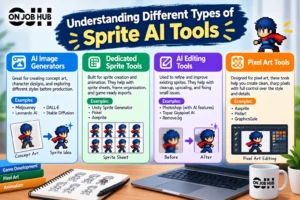
The categories matter mostly because they solve different problems.
Some tools are designed to generate artwork from a prompt. Others are built around sprite production, where the expectation is that you’re working with frames instead of standalone images. A third group focuses on editing. Those tools usually come into play after you’ve already generated something worth keeping.
If you’re also interested in understanding how AI is used in other creative tools, you can explore whether FrostyTools uses AI.
Pixel art tools also sit in a slightly different place. They’re built around the constraints of pixel art rather than general illustration. If your project depends on clean pixels instead of painted textures, that distinction starts to matter fairly quickly.
AI Image Generators
General AI image generators fit best at the beginning of the process.
They’re useful when you’re still deciding what the character should look like, testing different outfits, silhouettes, or color directions. You can discard ideas quickly without investing much time in drawing them yourself.
If the artwork only needs to exist as a concept piece or a static asset, that’s often enough. There’s no reason to force these tools into every stage of production just because they produced a strong first image.
For users exploring a Sprite Animation Maker AI workflow, these generators can be useful for creating the initial character concept before moving into more specialized tools.
Dedicated Sprite Tools
Dedicated sprite tools move closer to production work by focusing on sprite assets rather than standalone images.
Instead of treating each image as an isolated result, they’re built around assets that eventually become part of an animation or a game project. Some dedicated sprite tools support sprite sheets, frame organization, and exports that require less preparation for game engines.
They still don’t remove the need to review your work. They simply make the production side more predictable, which is often more valuable than generating another variation of the same character.
Which Tools Can Help Create Animation-Ready Sprites?
Once you know what each category is trying to do, individual tools make more sense.
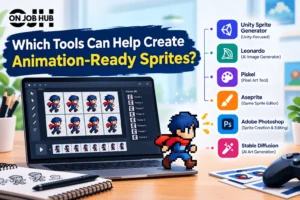
Unity Sprite Generator is considered here as a Unity-focused option for creating sprite assets. It helps when the goal is to create sprite assets that fit into that environment without spending as much time converting or reorganizing them afterward. Asset scaling and scene consistency may be more useful when managing sprite assets inside an ongoing Unity project.
Leonardo sits much earlier in the process. It’s a good place to explore visual ideas, compare character directions, and settle on an art style before worrying about production details. That makes it more valuable for exploration than for generating finished animation assets.
Aseprite fills a different role altogether. Even when AI produces most of the starting material, A sprite is often where the practical work happens. Small alignment fixes, pixel cleanup, frame adjustments, and sprite sheet exports are easier to manage there than by repeatedly asking an AI model to regenerate nearly identical frames.
When comparing a Sprite Animation Maker AI with traditional sprite editors, the main difference is often the amount of control you have over individual frames and final cleanup.
Choosing between these tools usually depends on whether you’re exploring, generating assets, or cleaning up sprites. Early exploration, production-ready asset creation, and final cleanup are different jobs, and no single tool handles all three equally well.
A Practical Workflow From Idea to Game Engine
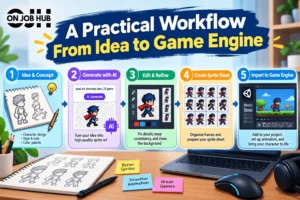
A workable pipeline is usually less about finding the perfect AI model and more about avoiding unnecessary resets.
Lock the character before you start chasing animation. If the design keeps changing, every new frame becomes another decision instead of another step. That slows everything down, even if the artwork itself looks good.
Reference-based generation may be more dependable than asking an AI to invent every frame from scratch. Once you have a version of the character that feels right, keep feeding that back into the process instead of starting over with a fresh prompt every time.
Generate a small set of frames first. Review them together instead of judging them one by one. Small differences are much easier to spot when the frames sit next to each other.
After the sequence looks usable, arrange the frames into a sprite sheet, export it, and see how it behaves inside the game engine. That first import often reveals problems that were easy to miss while looking at still images.
Preparing the Character
A clean silhouette makes later animation easier to read. If the outline becomes confusing once the sprite is scaled down, adding more detail rarely fixes it.
Keep the color palette steady from the beginning. Constantly changing shades between iterations creates extra cleanup later, especially on small sprites.
Pick a facing direction and stick with it while building the first animation. Switching angles halfway through usually creates more work than it saves.
Small decorative details can wait. Belts, tiny accessories, or textured clothing often look interesting in a single frame but become harder to manage across an entire animation.
Creating and Testing Animation
Start with one loop instead of several. A simple idle or walk cycle tells you a lot about whether the character can actually animate well.
Review the frames as a sequence, make small adjustments where movement feels off, then export the sprite sheet and test it inside your engine. That test is worth doing earlier than many people expect. A sequence that feels smooth in an editor can still look awkward once it runs at game speed.
A Sprite Animation Maker AI can speed up the early creation stage, but testing the resulting animation in the actual game engine is still important.
Common Problems That Make AI Sprites Unusable
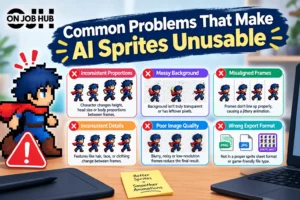
Some problems don’t become obvious until the Sprite Animation Maker AI starts moving.
A character whose face, hands, or body shape changes slightly from frame to frame often looks unstable, even if every individual frame looks polished. The same thing happens when colors drift without any reason. Players usually notice that kind of inconsistency faster than they notice missing visual detail.
Animation loops can also break for surprisingly small reasons. One frame lingers too long, another moves too far, and the motion never quite settles into a rhythm.
Readability is another common issue. A sprite that looks impressive at a large preview size may lose its shape once it’s displayed at the actual in-game resolution. Fine textures disappear, outlines blend together, and important movement becomes harder to read.
That’s why attractive AI artwork and production-ready sprites aren’t always the same thing. One can exist without the other.
When using a Sprite Animation Maker AI, these issues should be checked before treating the generated output as a finished game asset.
How to Choose the Right Tool for Your Project
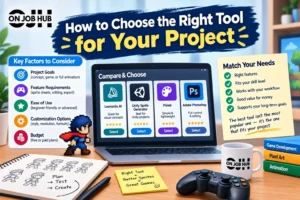
The right tool depends on how much control you need and where the project is in development.
For a quick prototype, a fast image generator may be perfectly reasonable. You can test a character, build a rough animation, and move on without spending much time on asset cleanup. A production project has different demands. Repeated assets, consistent style, predictable exports, and the ability to fix individual frames start to matter more.
Experience changes the tradeoff too. A beginner may get more value from a tool that handles more of the setup. Someone comfortable with pixel editing may prefer a faster generator followed by hands-on cleanup.
There is also a difference between speed and control. A fast workflow gets you from idea to usable material sooner, but it gives you fewer opportunities to control every detail. A controlled workflow takes more work, but it makes sense when small visual changes matter.
Using more than one tool is often reasonable. One can handle exploration, another can help with generation, and an editor can take care of the parts AI doesn’t get quite right.
For many projects, the best Sprite Animation Maker AI setup may therefore be a combination of AI generation and manual editing rather than relying on one tool for everything.
Frequently Asked Questions
Can AI automatically create a complete sprite sheet?
Some tools can generate sprite sheets or organize frames for you, but the result still needs checking. Automatic generation does not guarantee that every frame will work as an animation.
A Sprite Animation Maker AI may automate parts of this process, but animation quality still depends on frame consistency, alignment, and cleanup.
Is a general AI image generator enough for sprite animation?
It can be enough for concepts or simple projects where exact consistency isn’t critical. For a production animation, you’ll usually need more control than a general image generator provides.
Do I still need a sprite or another editor after using AI?
Often, yes. An editor gives you direct control over individual pixels, frame placement, cleanup, and export. You don’t necessarily need it for every project, but it becomes useful when the generated output needs fixing.
How many frames are enough for a basic animation loop?
There isn’t one required number. A simple loop can work with only a few frames, while more detailed movement may need more. The important part is whether the motion reads smoothly at the speed used in the game.
How do you keep a character consistent across multiple animations?
Keep the character design and references stable, then review the animations against the same source material. The more variations you generate independently, the more opportunities there are for the character to drift.
Final Thoughts
AI can make the first part of sprite animation maker ai creation much faster, but generating an image and producing an animation-ready asset are different jobs.
A useful workflow usually leaves room for both AI generation and manual refinement. The right balance depends on how much control the project needs and how quickly you need to move.
The finished sprite still has to work in the game. If the character stays consistent, the animation reads properly, and the exported assets behave as expected, the tool has done its job.
For that reason, a Sprite Animation Maker AI should be viewed as part of the workflow rather than a complete replacement for testing and manual refinement.

2 thoughts on “Sprite Animation Maker AI: Which Tools Can Help You Create Animation-Ready Sprites?”